The [Rootstock Explorer](https://explorer.rootstock.io/) is a block explorer for the Rootstock mainnet and [testnet](https://explorer.testnet.rootstock.io/). In this guide, you will learn how to use the explorer to look up transactions, blocks, addresses, and tokens, to read and interact with verified smart contracts, and to inspect attestations and dApps. You can also add a token to MetaMask from the top navigation or from a token page.
## Getting Started
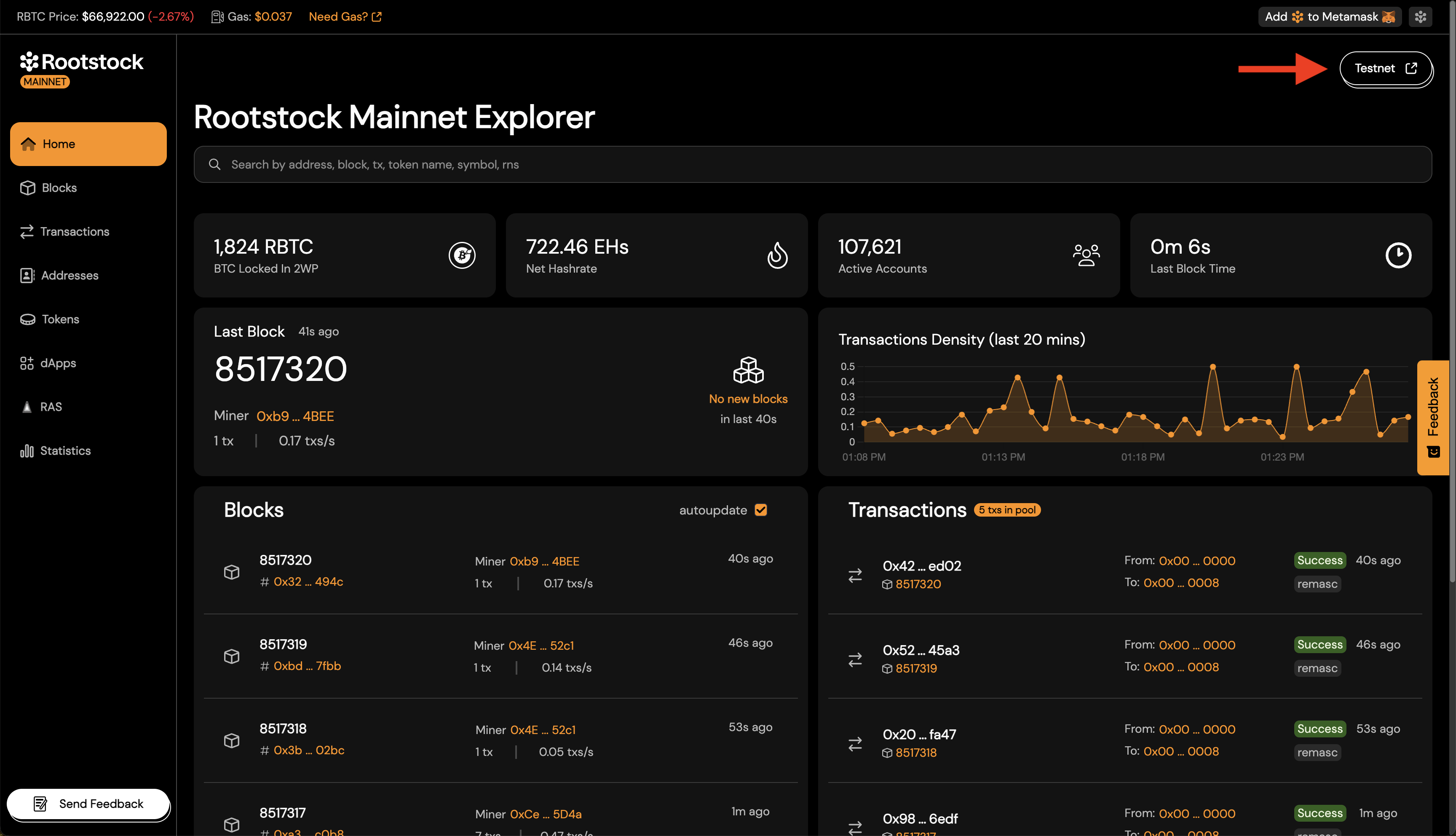
The explorer home page shows live network metrics, the latest block, a transaction density chart, and lists of recent blocks and transactions. Use the tab bar to jump to dedicated views for blocks, transactions, addresses, tokens, dApps, attestations (RAS), or statistics.
### Switch between networks
The explorer defaults to mainnet. Use the network selector in the top bar to switch to testnet when you need to inspect testnet blocks, transactions, or contracts. Switch back the same way.
### Switch between tabs
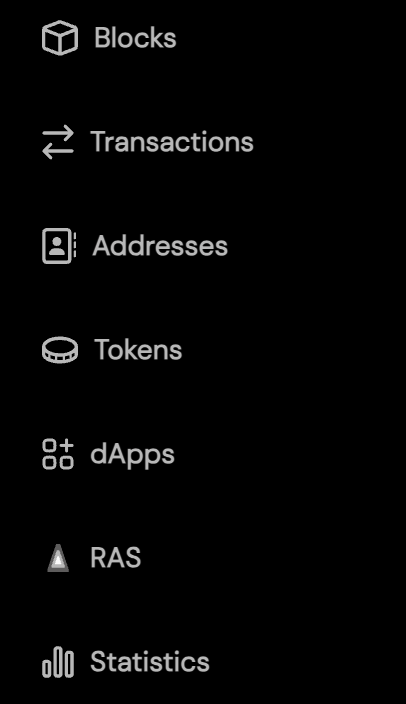
The top navigation has one tab per section. Click a tab to open that section without leaving the explorer.
### Search
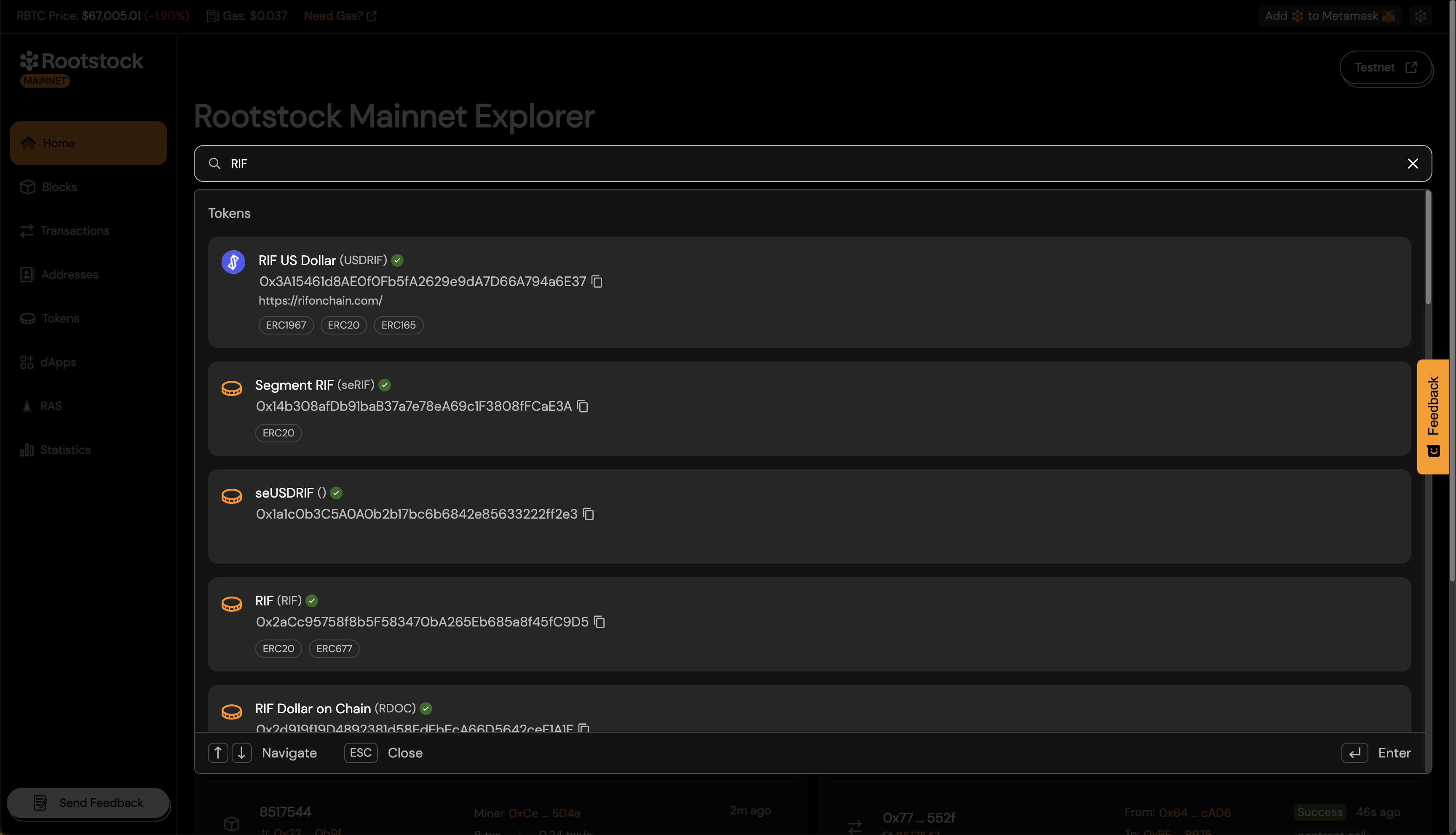
You can look up any item by typing in the search box. The explorer accepts an address, block number, token name or symbol, RNS name, or transaction hash. It redirects you to the matching block, transaction, address, or token page.
### Last block panel
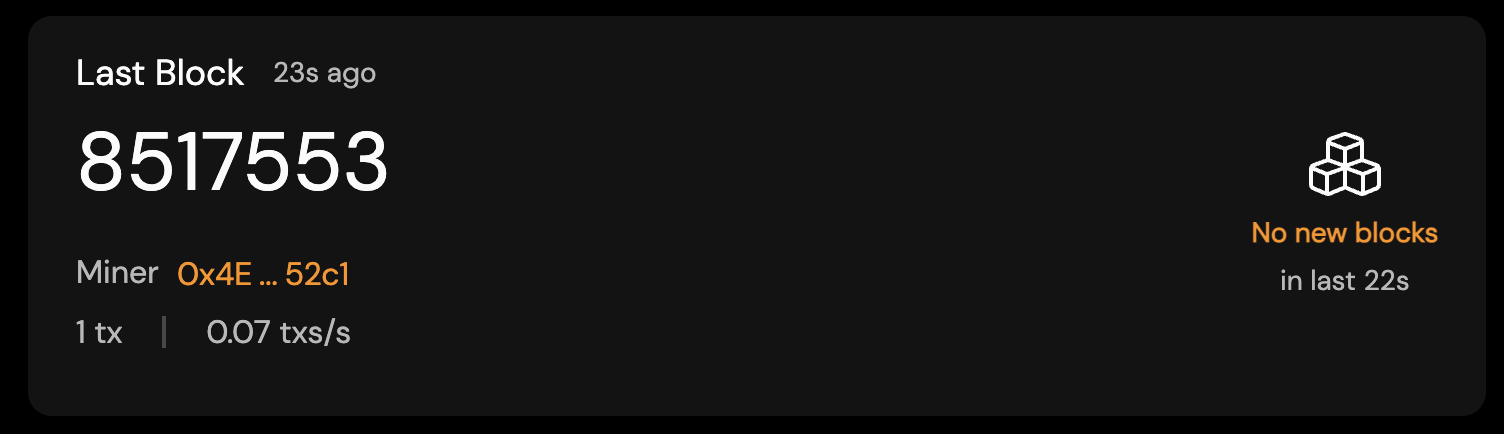
Below the stats, a panel shows the latest block. It displays the block number, miner address, transaction count, and block time. Click the block number to open the block detail page. Use the copy icon next to an address to copy it.
### Transaction density
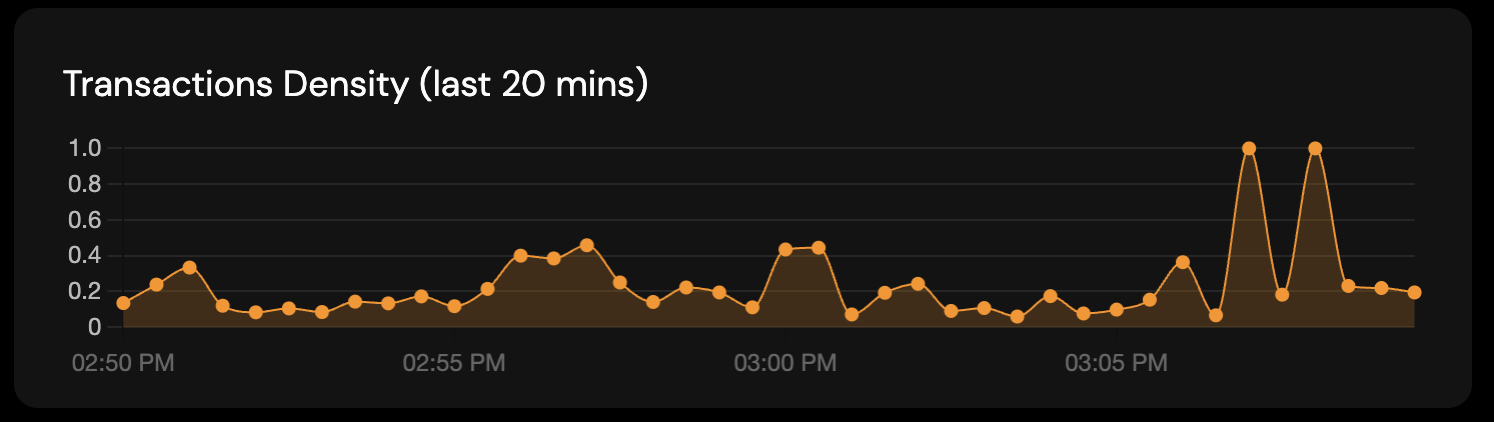
A line chart under the last block shows transaction density over the last 20 minutes. Use it to see how busy the network is. You can turn autoupdate on or off.
### Blocks list
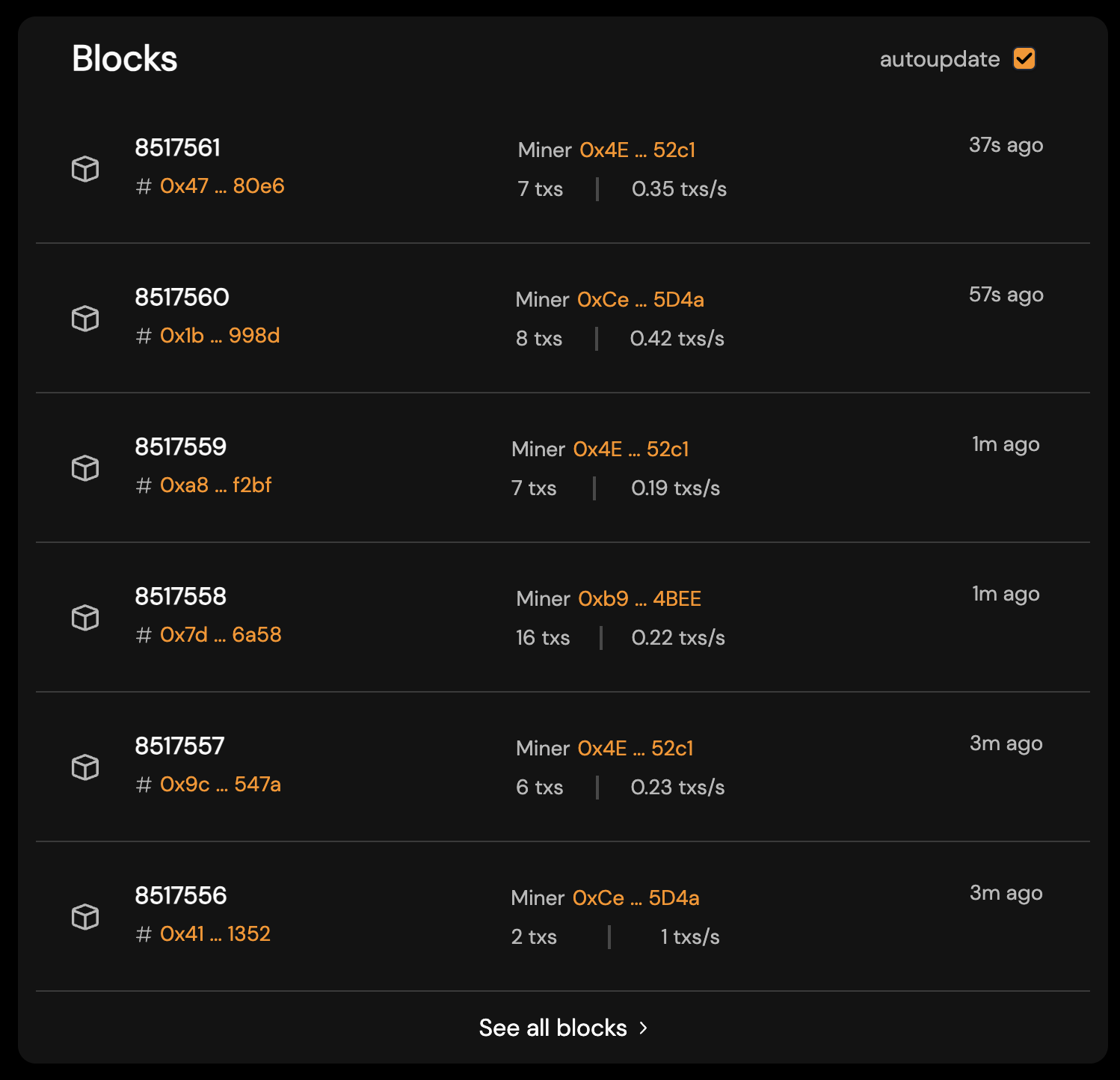
A table lists recent blocks with block number, block hash, miner, transaction count, and time. Click a block number or hash to open that block’s page. Use **See all blocks** to open the full blocks list.
### Transactions list
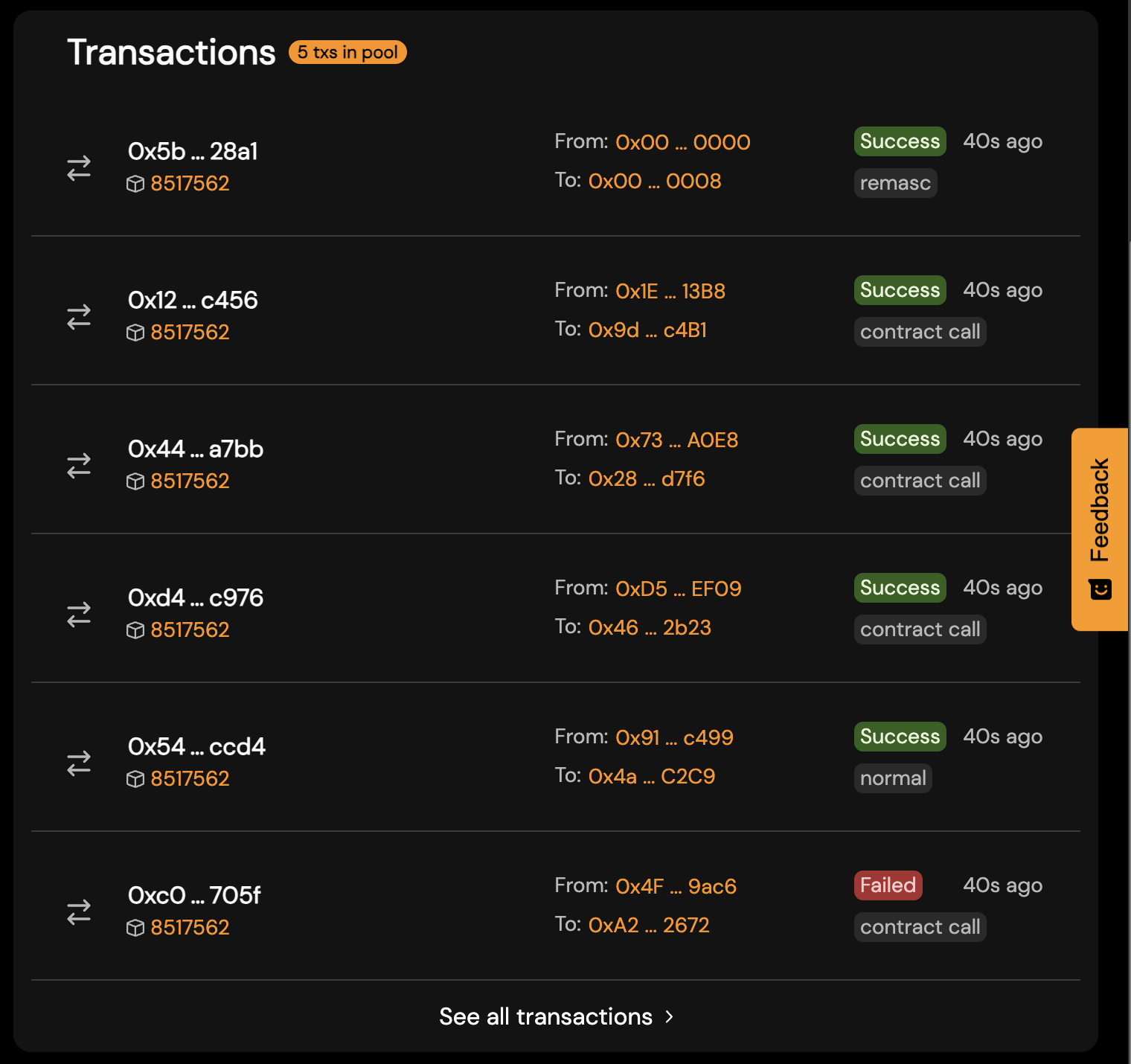
A table lists recent transactions with hash, block, from/to addresses, status, and time. Click a row to open the transaction detail page. Use **See all transactions** to open the full list. You can also open the transaction pool from this area.
### Addresses
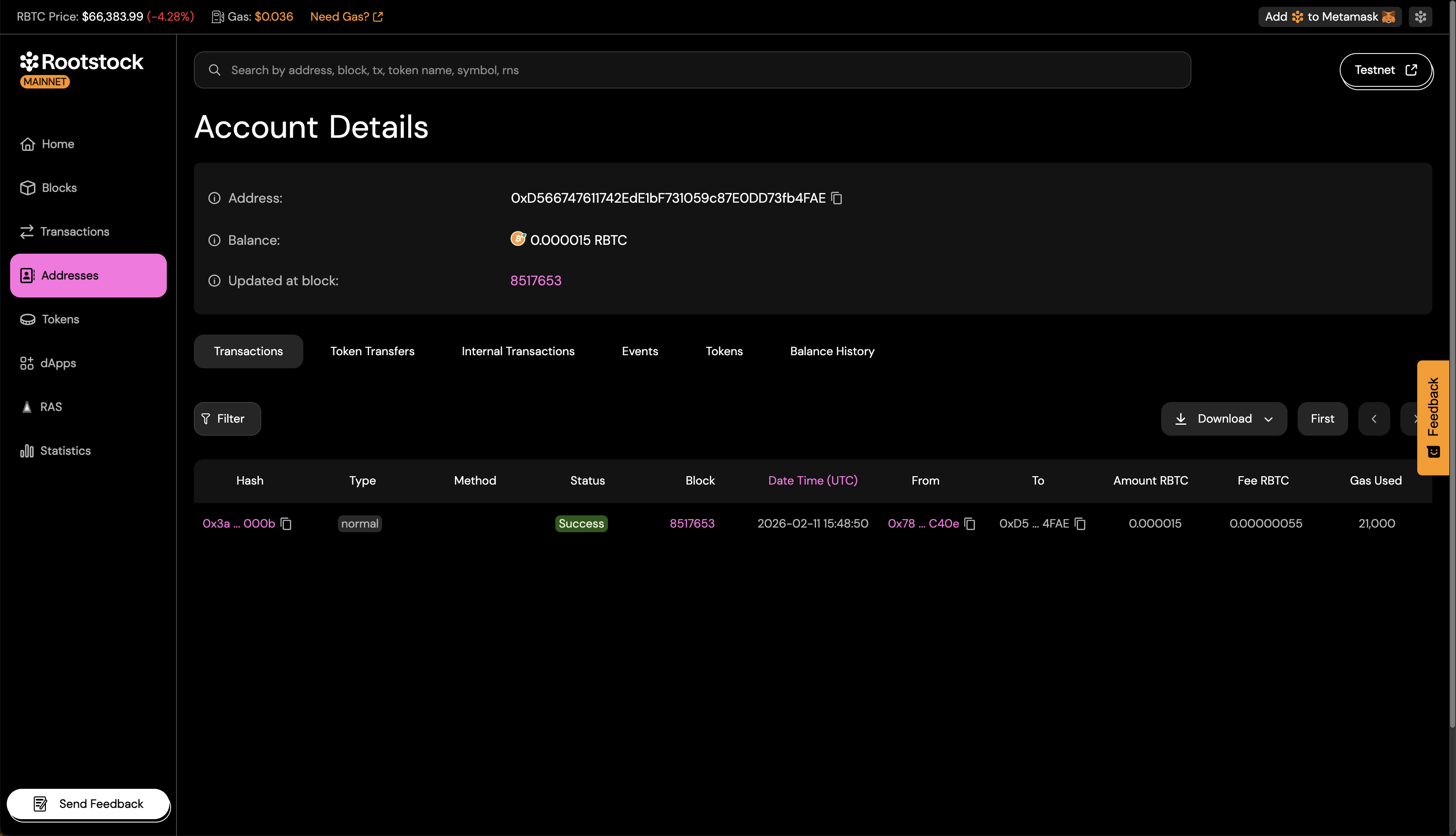
The Addresses section lets you browse addresses with activity on Rootstock. From an address page you can see balance (rBTC and tokens), transaction history, and contract code and read/write functions when the address is a verified contract.
### Tokens
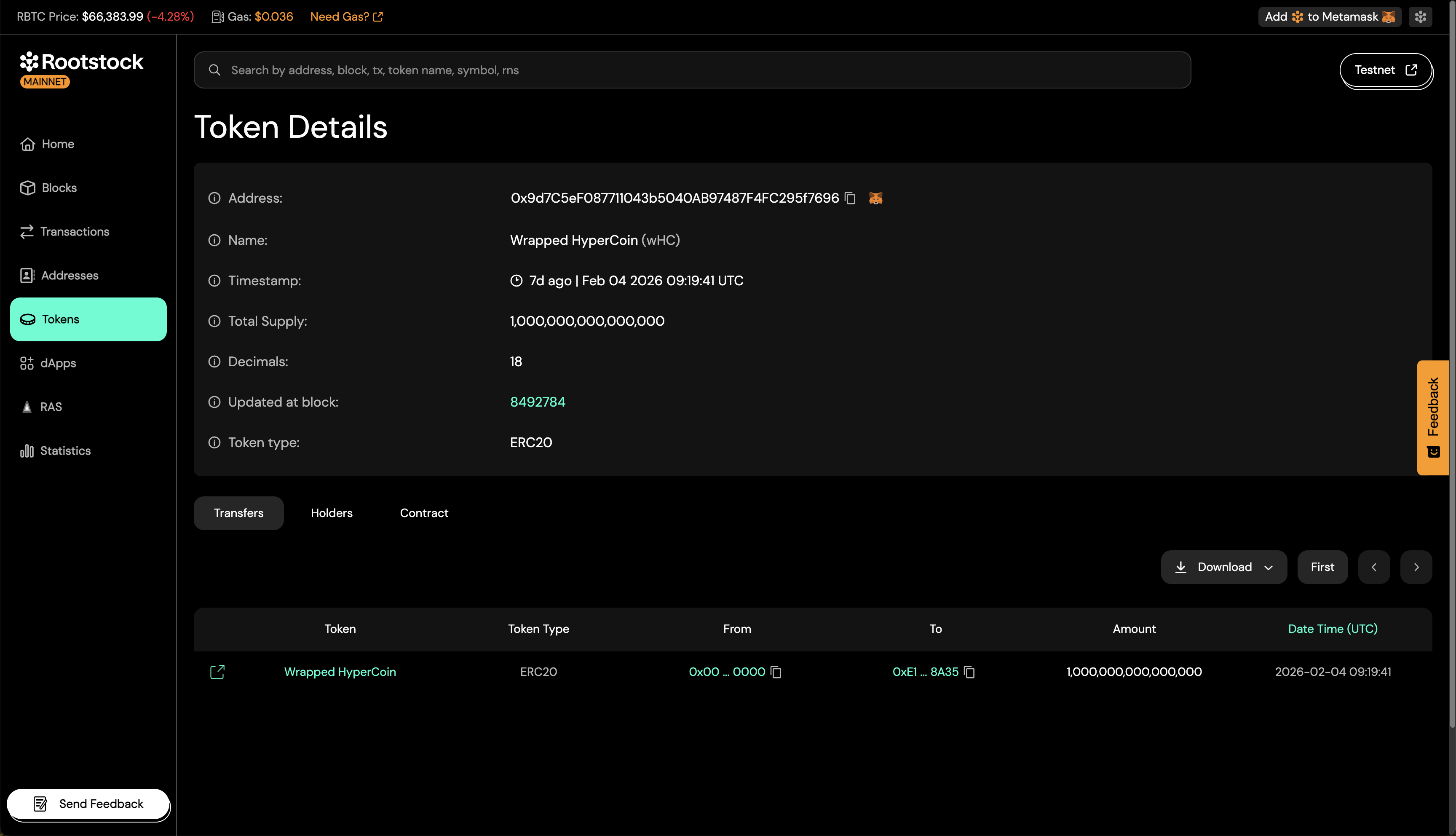
The Tokens section lists ERC-20 and other tokens on Rootstock. You can search and filter by name or symbol, see supply and holder counts, and open a token’s page for transfers, holders, and contract details.
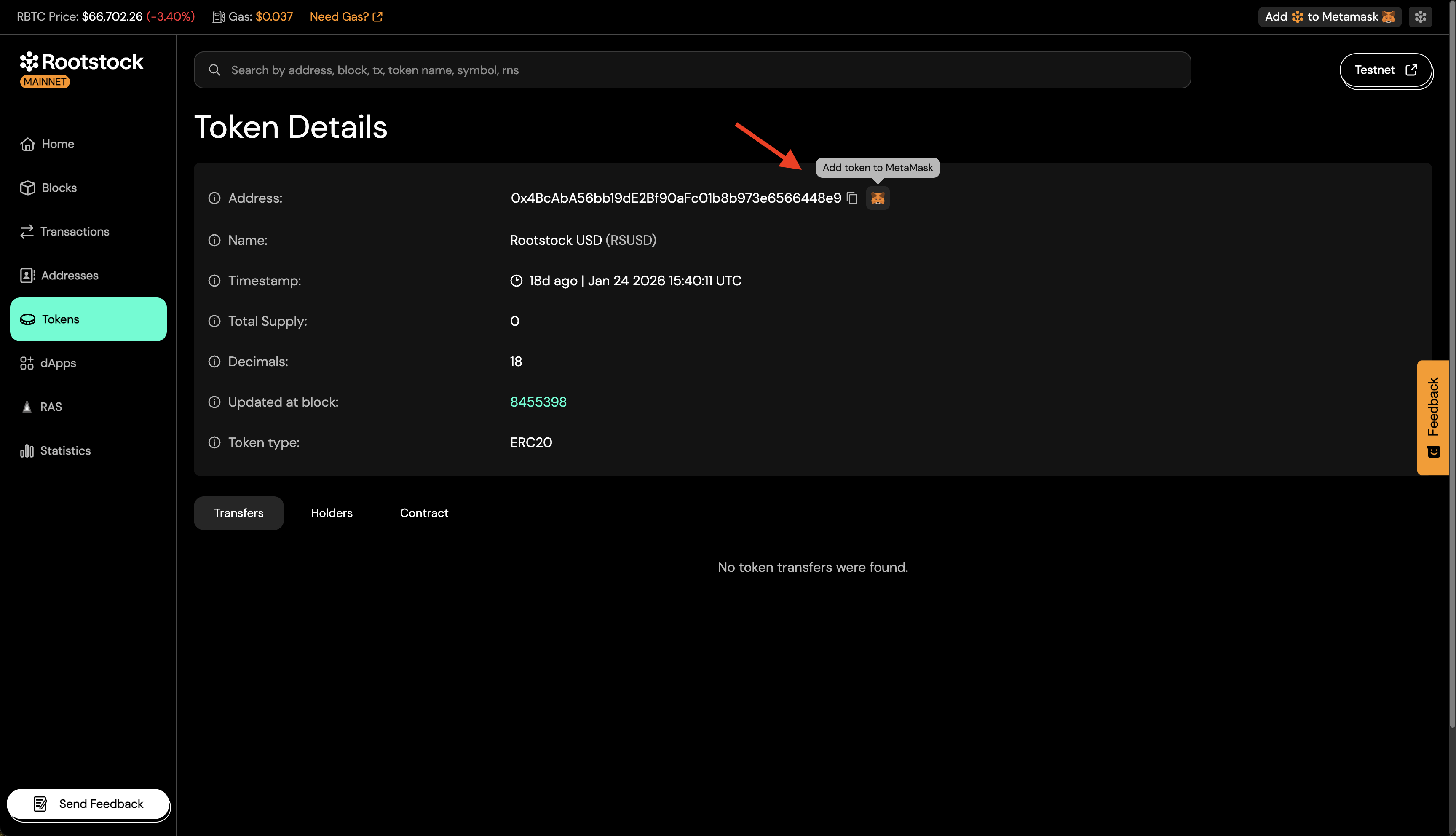
#### Add a token to MetaMask
You can add a token to MetaMask from the explorer top navigation or the token page using the MetaMask icon. Use the “Add token to MetaMask” (or similar) action so the token shows up in your wallet and you can send or receive it without entering the contract address by hand.
#### Token details
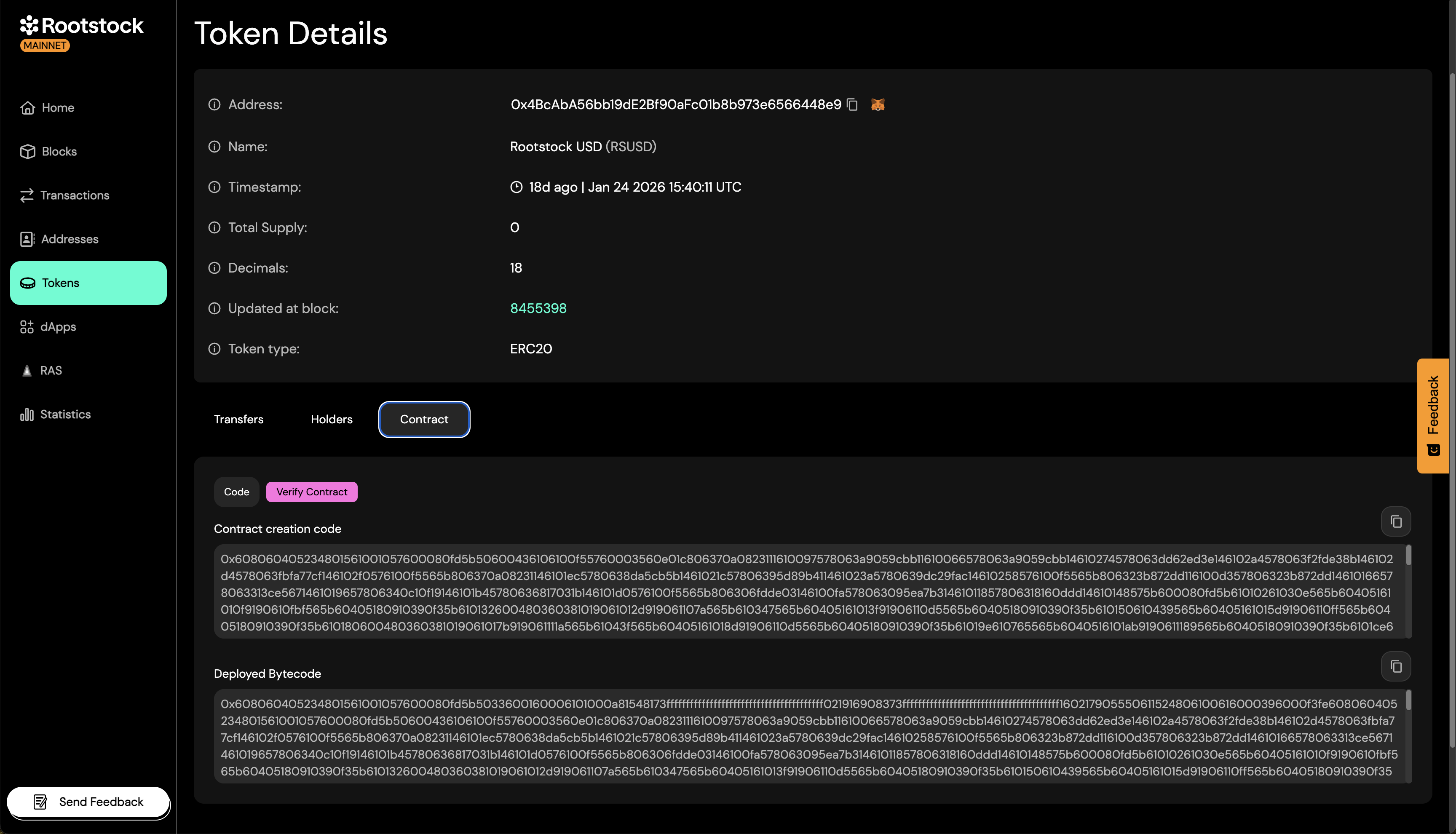
On a token’s page you see the contract address, name, timestamp, token type, total supply, and more. Use the tabs below the header to switch between Transfers, Holders, and contract details.
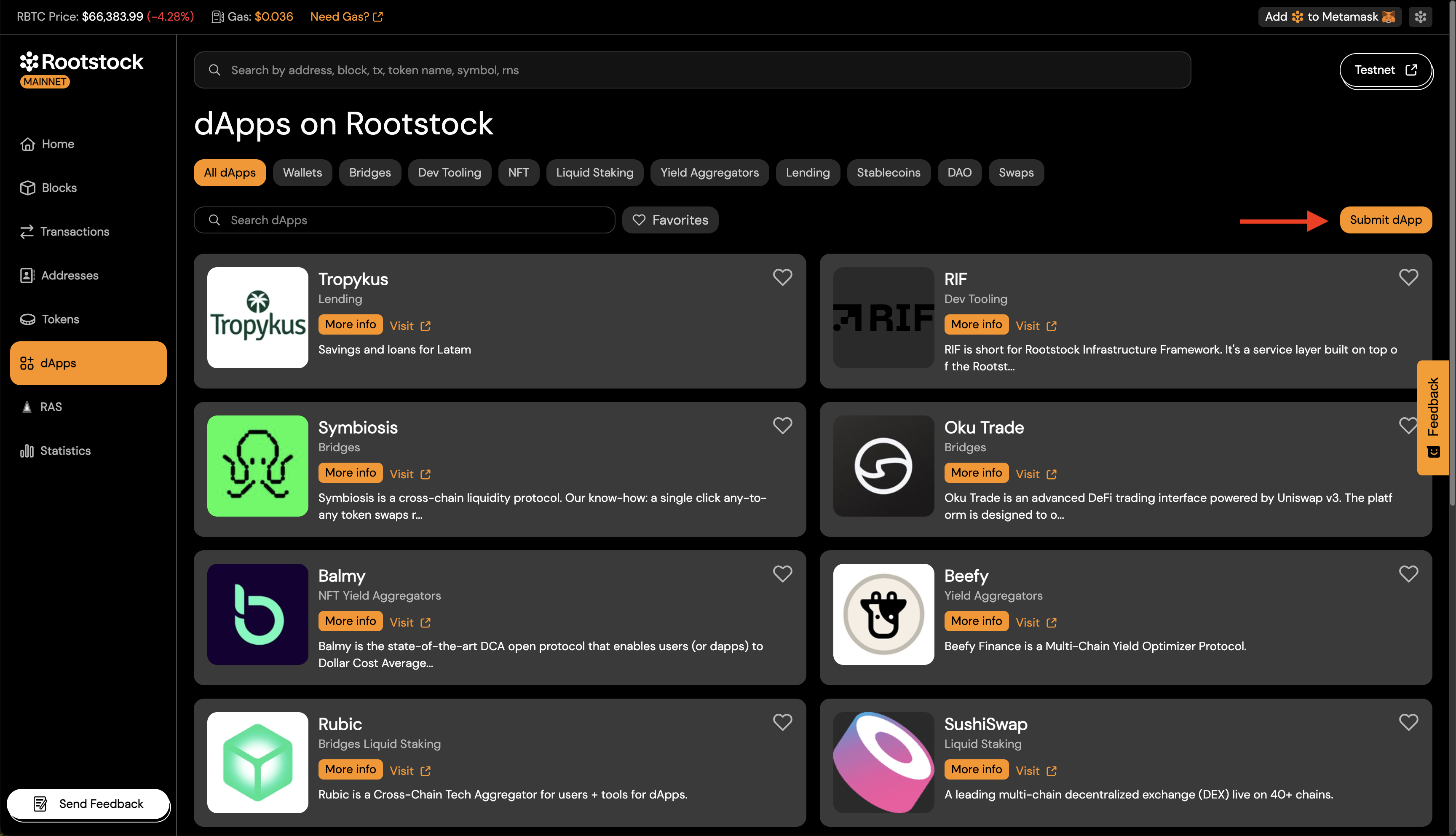
### Submit a dApp
The dApps section lists applications built on Rootstock. If you maintain a dApp, you can submit it so it appears in the explorer. Submitting helps other users find your dApp and see basic info and links.
### Attestations and schemas (RAS)
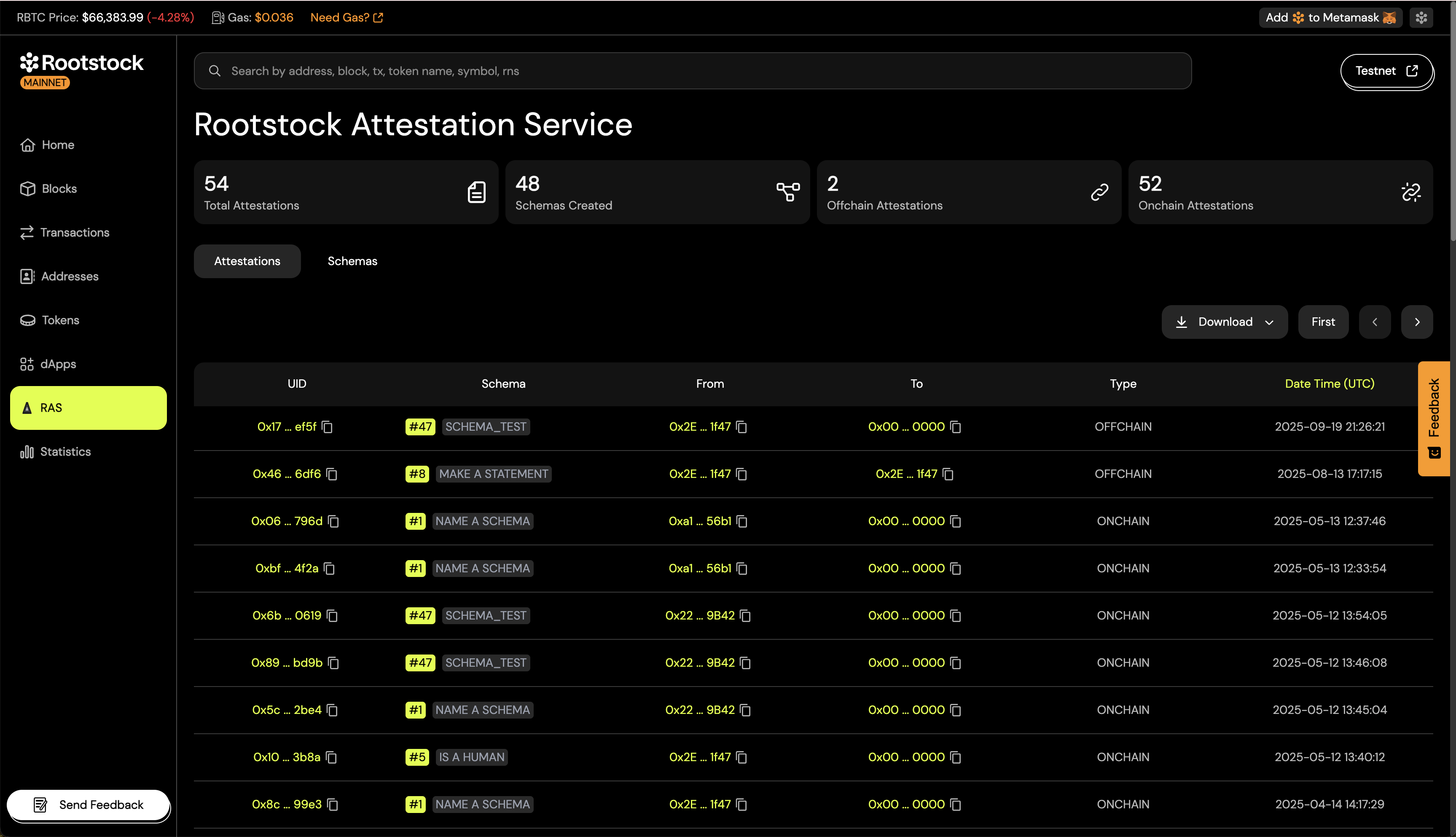
The RAS (Rootstock Attestation Service) section lets you browse attestations and schemas. Attestations are on-chain claims tied to identities or credentials. Schemas define the structure of those attestations. Use this section to discover and inspect attestation types and their data.
### Rootstock statistics
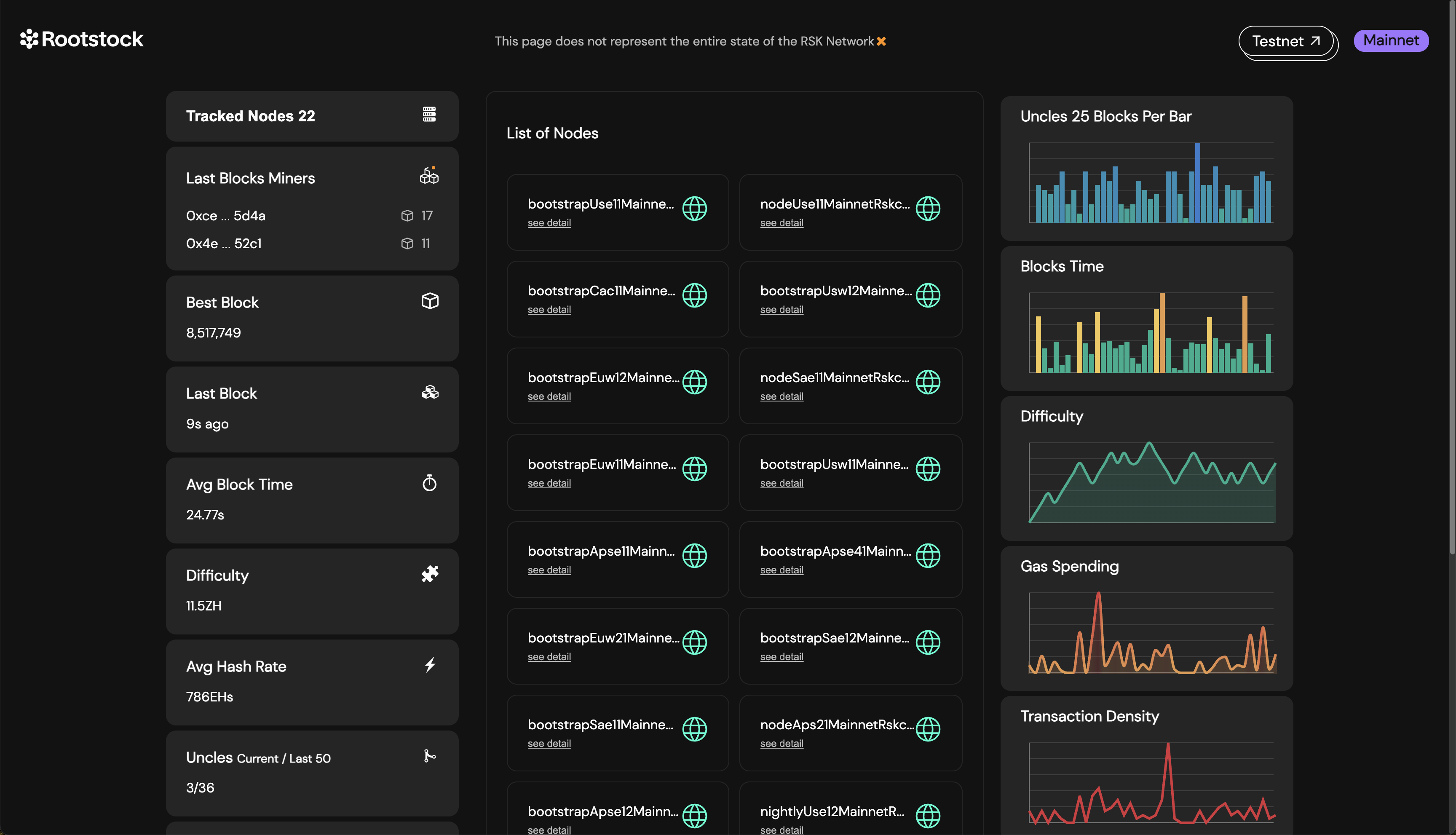
The Statistics tab shows network metrics such as tracked nodes, active miners, average block time, hashrate, and block time. Open it from the left navigation on the explorer.